Getting Started
Six short steps and you'll be running your whole business from your phone. Follow them in order the first time.
Step 1
Your Home Dashboard
Your whole day at a glance, every time you open the app.
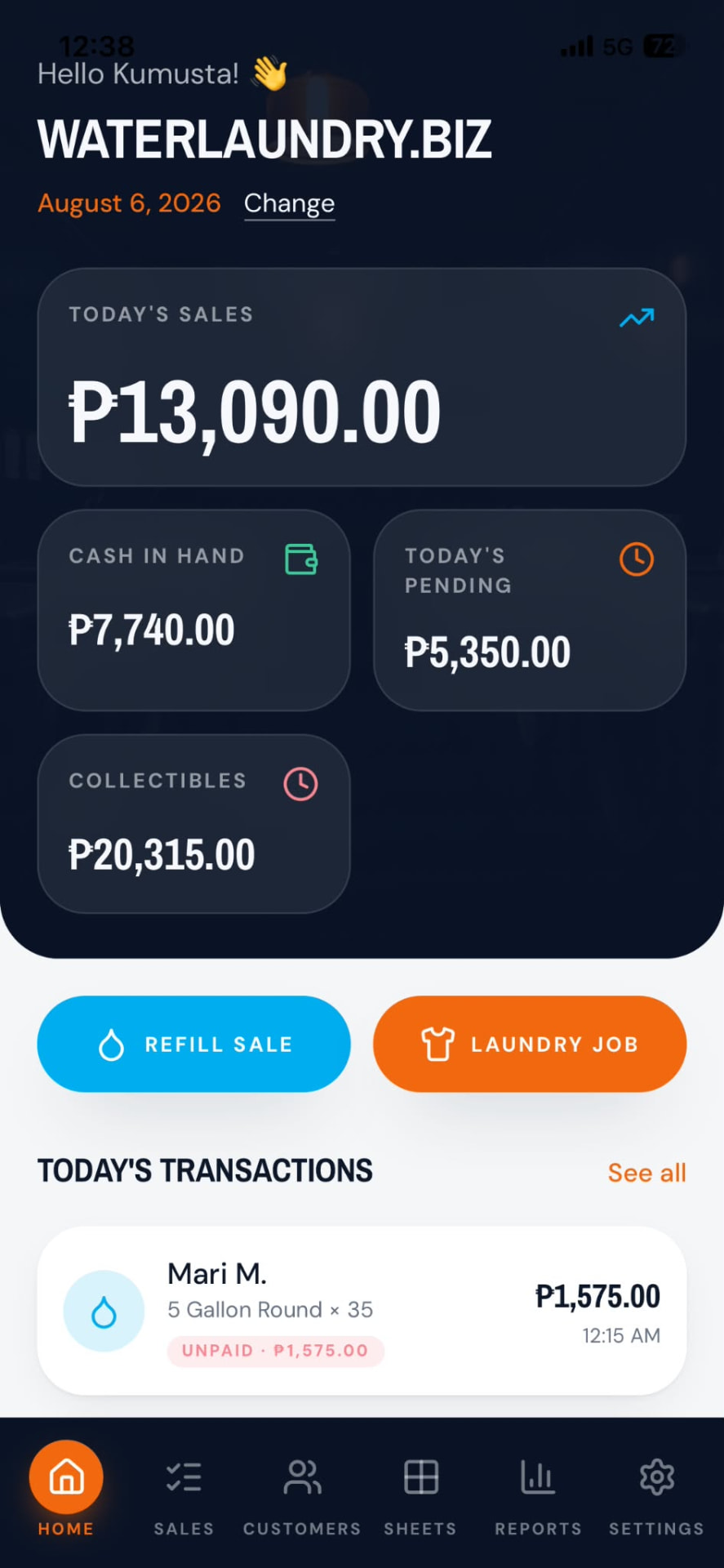
- Read the four cards: Today's Sales, Cash in Hand, Today's Pending and Collectibles.
- Tap Change beside the date to look at another day.
- Tap Refill Sale to record a water order.
- Tap Laundry Job to record a laundry order.
- Scroll to Today's Transactions, or tap See all for the full list.
Step 2
Settings & Main Control
Do this first — it makes every other screen behave the way your shop works.
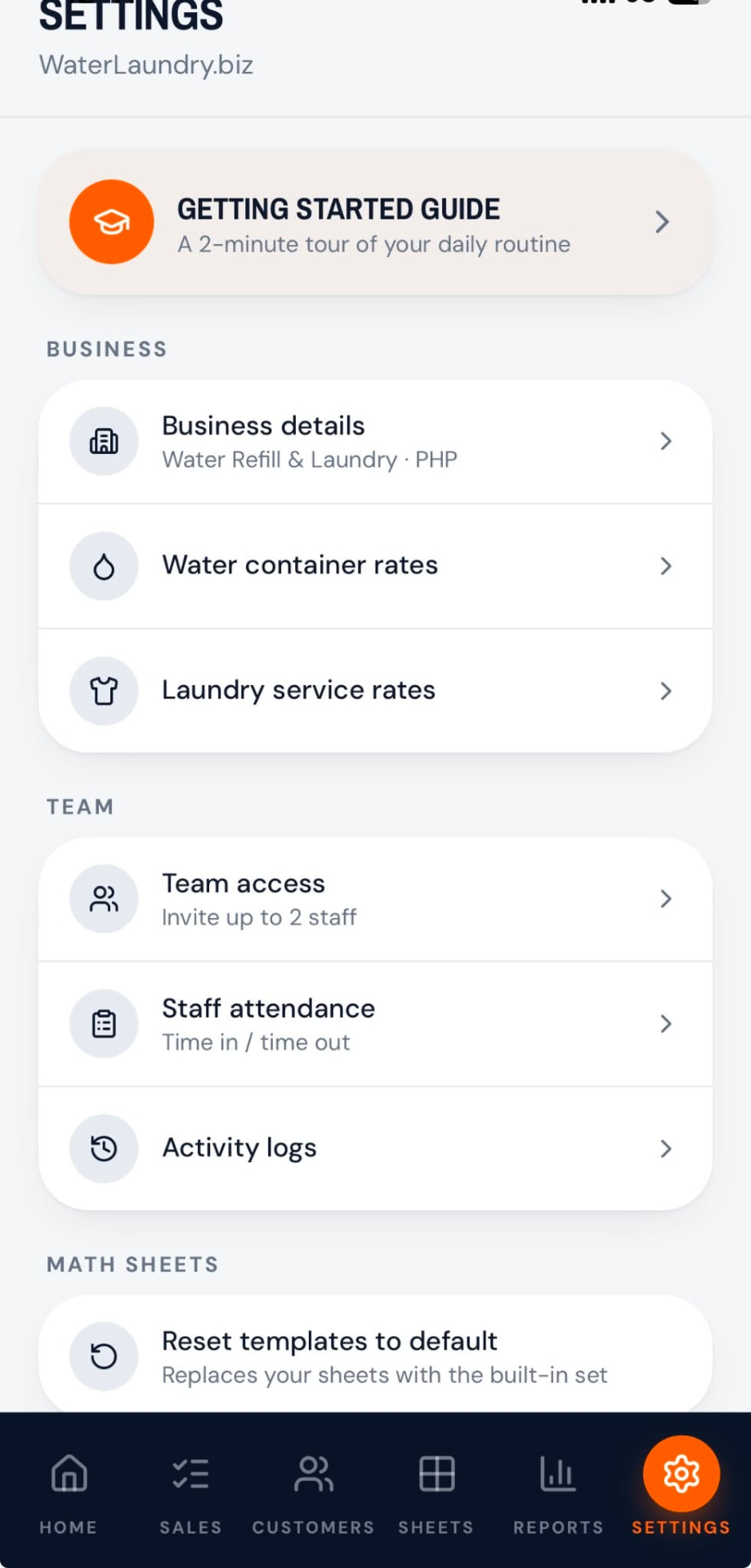
- Open Business details and set your business name, business type and currency.
- Open Water container rates and set the price per container size.
- Open Laundry service rates and set the price per kilo or per load.
- Use Team access to invite up to 2 staff, then Staff attendance for time in / time out.
- Check Activity logs any time to see who recorded or changed what.
Step 3
Record and Edit a Sales Transaction
Every sale you record lands here — searchable, editable and totalled.
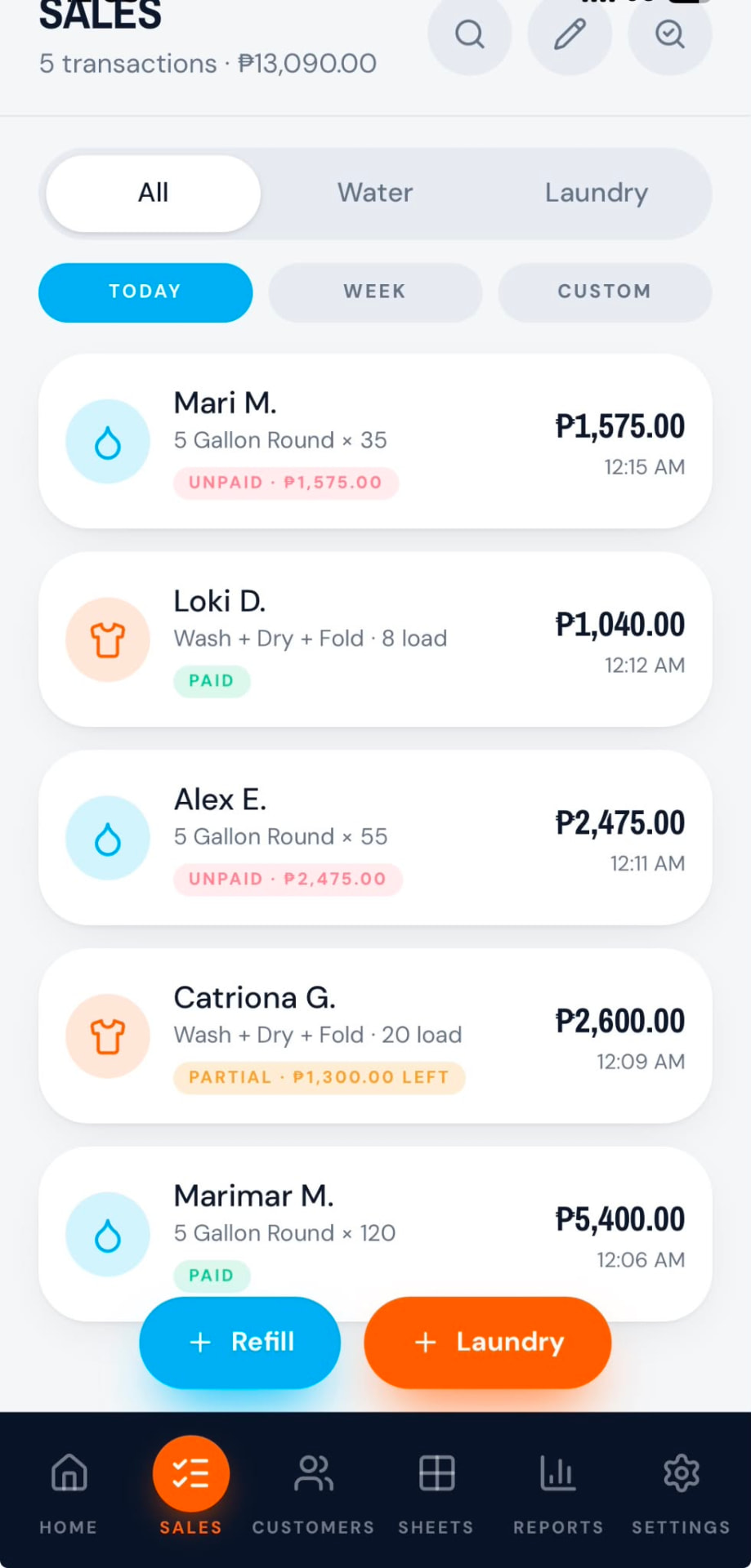
- Tap the floating + Refill or + Laundry button to add a new transaction.
- Pick the customer, the size or service, the quantity, then Paid, Utang or Partial — the total computes for you.
- Filter with All / Water / Laundry and Today / Week / Custom (Custom includes both dates you pick).
- Tap the magnifier to search a customer or service; tap the check icon to show unpaid only.
- Tap the pencil to turn on edit mode, then edit or delete a row. Changes update Home, Customers and Reports right away.
Step 4
Manage Your Customers
Save your regulars once so recording a sale takes a few taps.
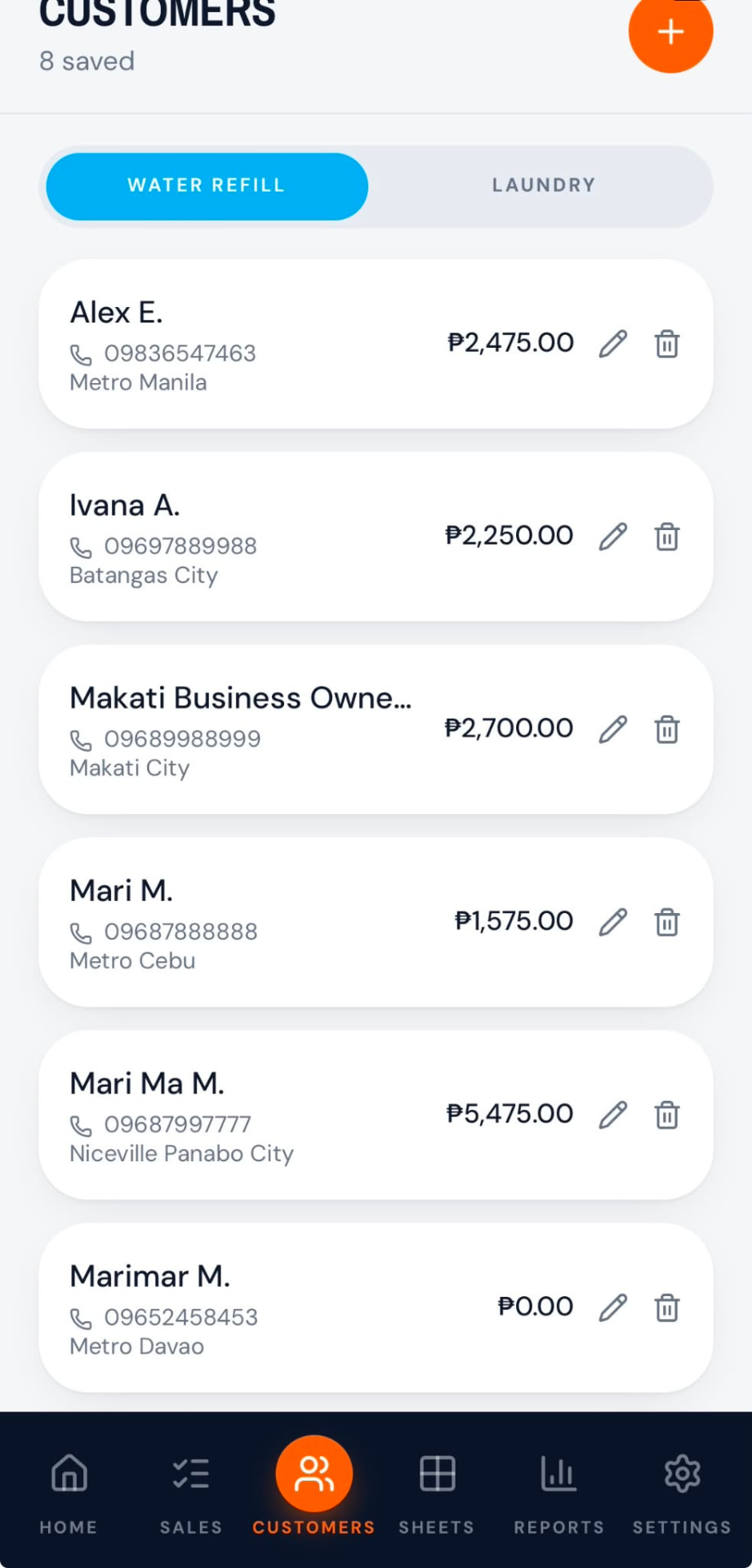
- Choose the Water Refill or Laundry tab first, then tap the orange + to add a customer to that list.
- Fill in the name, mobile number and address, then save.
- The amount beside each name is what they still owe you.
- Tap a customer to see their full transaction history, container balances and PDF or CSV export.
- Use the pencil to correct details, the trash to delete — you'll be asked to confirm first.
Step 5
Pre-Built Math Sheets
Pocket spreadsheets that already know your business — no setup needed.
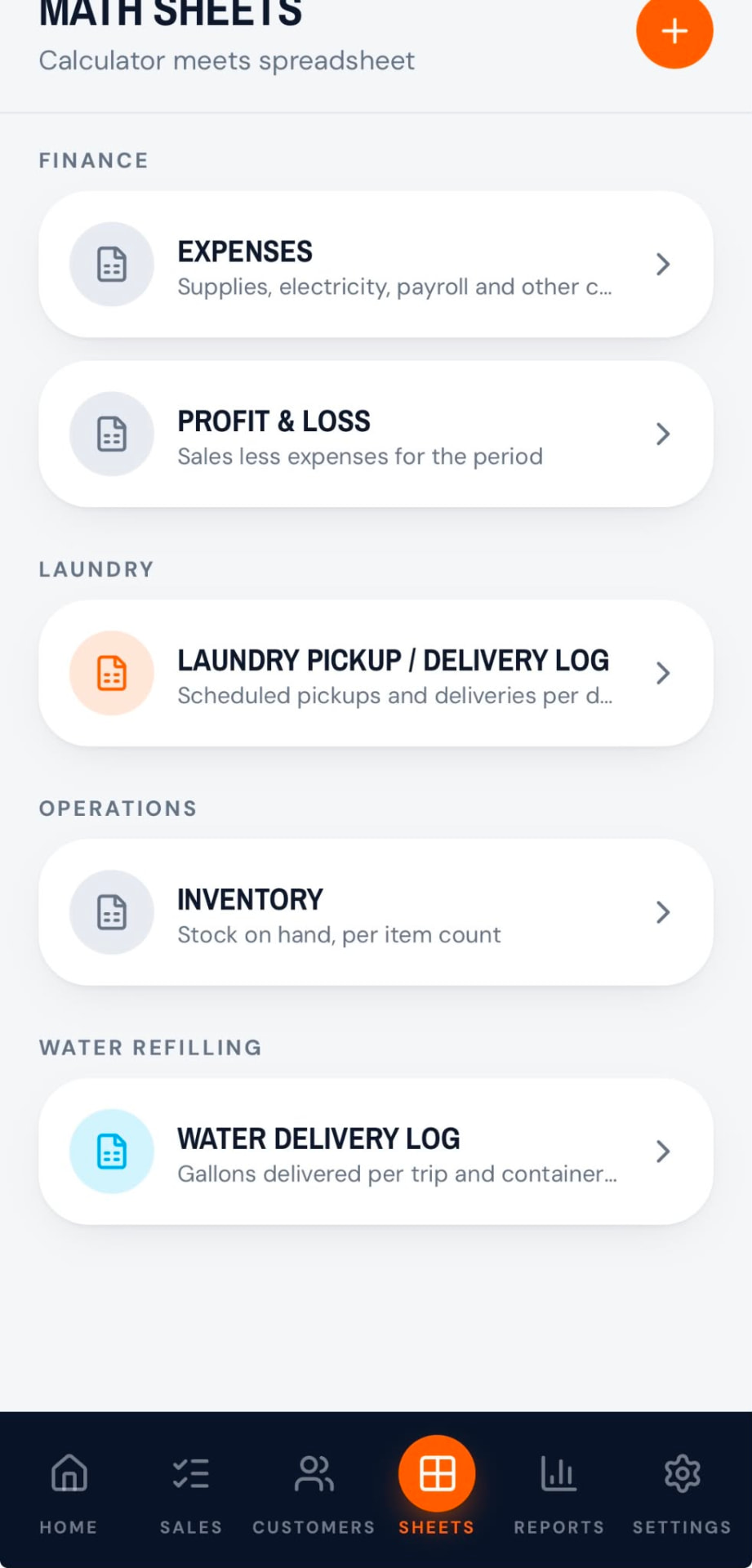
- Open Expenses or Profit & Loss under Finance to track money in and out.
- Use Water Delivery Log for gallons delivered per trip.
- Use Laundry Pickup / Delivery Log for scheduled pickups and deliveries.
- Tap any label or value to edit it right on the row.
- Tap Add row — new rows go above the locked total row, so the total counts them automatically.
- Need your own math? Type a formula like =SUM(ABOVE) or [Supplies]*2 into the value.
Step 6
View and Save Reports
Turn the day, week or any date range into a summary you can keep or share.
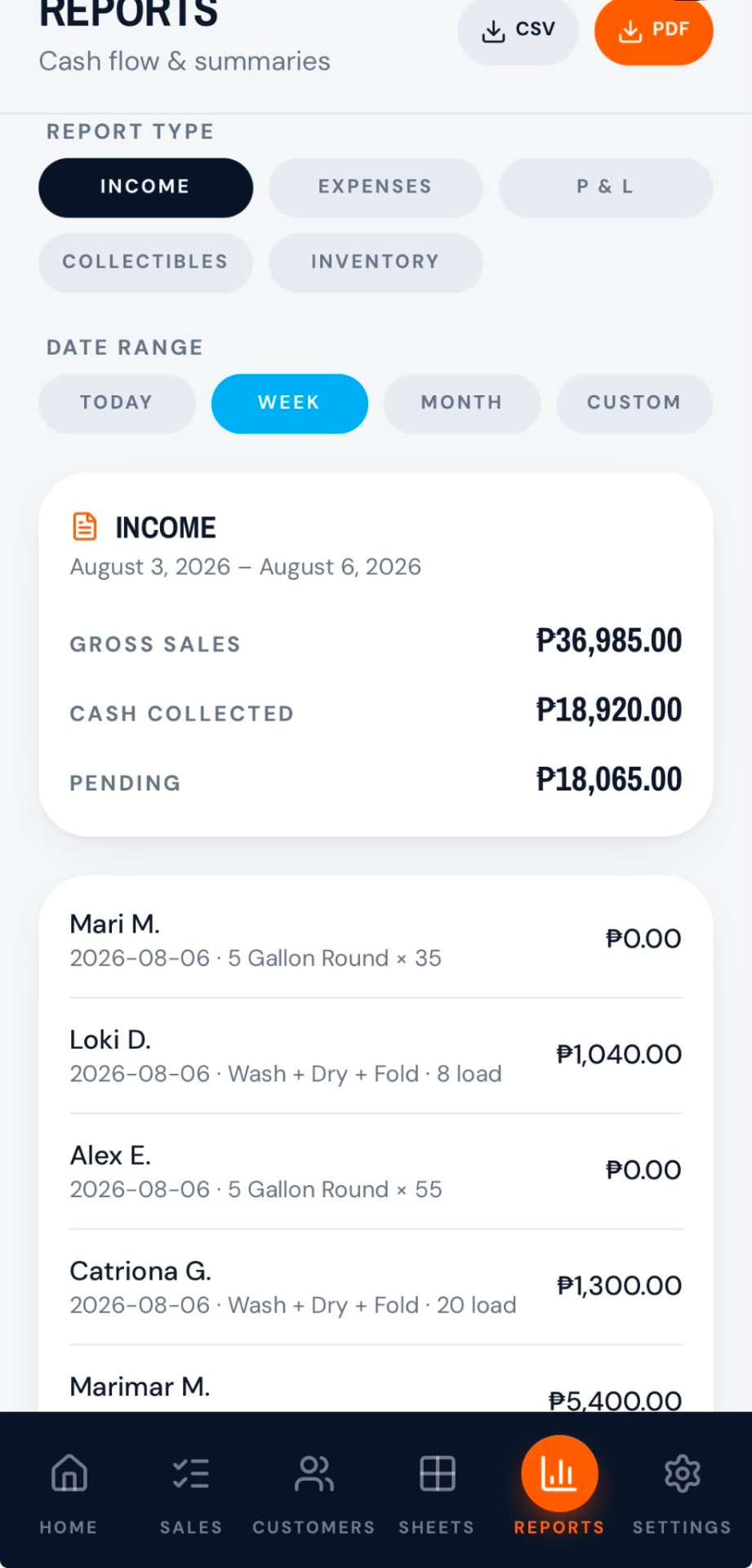
- Pick a Report Type: Income, Expenses, P & L, Collectibles or Inventory.
- Pick a Date Range: Today, Week, Month or Custom.
- Read the summary card, then scroll for the line-by-line detail.
- Tap CSV or PDF at the top right to save or share the report — your business name and address are printed in the header.